DesignTrace

Role
Design Engineer
Tools
Figma Plugin API
Vanilla JS / HTML / CSS
Native Browser APIs
Skills
Product Design,
API Architecture,
AI-assisted Development
Timeline
1 Week
Solution
A lightweight Figma plugin that scans through document trees to find structurally and visually similar designs, helping teams track down duplicate components, detached layers, or outdated patterns across multiple pages.
Opportunity
For anyone who has ever lost hours hunting down detached components or outdated button variants across a 50-page Figma file, I built a solution.
DesignTrace is a Figma plugin that scans your entire file to find where specific designs, frames, or visual patterns live. Think of it as a reverse-image search tailored specifically for design systems.
Process
Prototyping
To build a tool that could scan a massive file in under 30 seconds without freezing Figma, I had to keep the initial scope tight. I focused entirely on core features—like the basic matching engine—and pushed complex ideas to a future roadmap.
With the feature list set, I used Figma Make to quickly generate the initial user flows and screens for a compact 360px plugin panel. Instead of manually drawing every button and layout from scratch, it gave me a fast visual foundation to test how screens transitioned before writing any code.

Refining
While the initial layout was a great starting point, making it work smoothly with tons of layers required moving into code. I transitioned the project into Windsurf to write the backend logic and polish the final interactions.
Inside Windsurf, the focus shifted entirely to performance and cleaning up the user experience:
The Engine Logic: I coded the 4-stage matching algorithm to process layers in small, asynchronous chunks. This keeps the background search from lagging or freezing the Figma app.
The Accordion Pivot: Testing showed that clicking back and forth between separate detail screens felt slow. I changed this to a fast inline accordion model—clicking a result expands it instantly to show details and automatically zooms the user to that exact layer on the canvas.
Window Resizing: Because Figma doesn't natively support resizable windows for custom plugin code, I built invisible drag handles on the UI edges and programmed the mouse-tracking events to trigger live window resizing.

The Takeaway
Building a tool for other designers teaches you very quickly that speed and reliability matter far more than flashy animations. If a plugin takes too long to load or freezes the canvas, a designer will just close it and never open it again.
By skipping heavy frameworks and writing raw, optimized vanilla JavaScript, DesignTrace loads instantly and handles thousands of layers without a hiccup. Forcing myself to jump into the code and debug the document tree traversal completely changed how I look at design constraints.
Ultimately, the best designs aren't just beautiful—they are the ones that run flawlessly in a real-world workflow.
Solution
The Core Flow: From Selection to Resolution
Instead of a complex UI, the plugin uses a tight, 360px layout structured into three simple phases.
Phase 1: Select & Scope
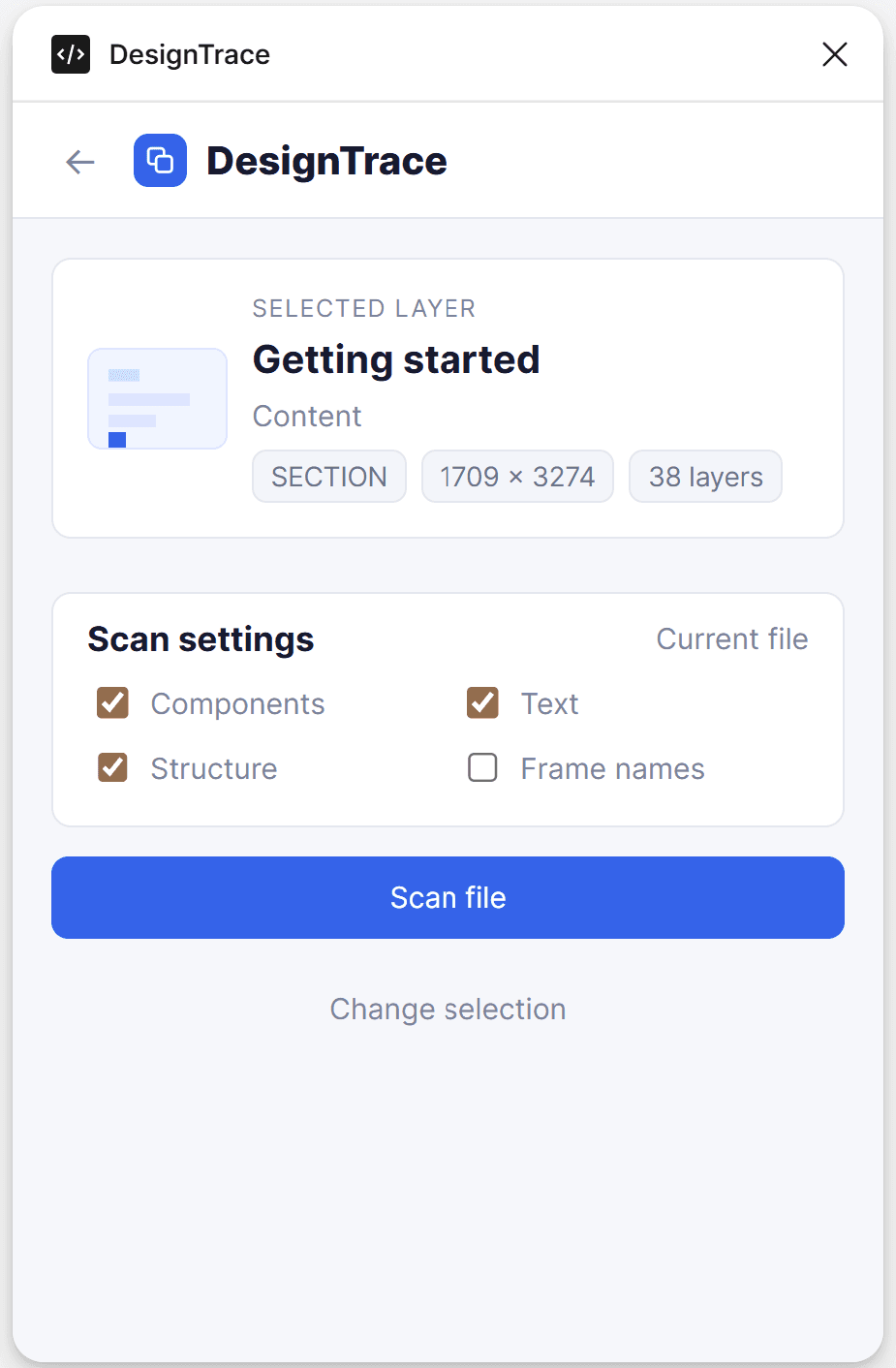
Landing (Empty State): A clean minimalist window with one job: get the user to select a layer.
Selected State: Once clicked, the plugin pulls a live preview of the layer. Before scanning, users can fine-tune the engine's parameters via quick toggles—filtering by exact component instances, text matches, layer structures, or frame names.

Phase 2: Scan & Categorize
The Scanning Engine: Because file scanning takes processing time, transparency is key. The UI displays active, checking steps (Reading layer... Comparing text... Ranking matches) so the user knows the plugin hasn't crashed.
The Dashboard (14 Matches Found): Results are bucketed by a color-coded Confidence Score (High/Green, Medium/Amber, Low/Gray). This keeps the user from being overwhelmed by noise.


Phase 3: Inspect & Destroy
Side-by-Side Comparison: The detail view stakes the original design directly against the found match. It explicitly calls out variations: "Shared component instances, but different spacing detected."
Quick Actions: With two clicks, a designer can hit "Take me there" to jump directly to the canvas location, or "Flag as outdated" to mark it for a future design system cleanup session.

View more projects

